Image to Text (OCR) Guide: How Tesseract Extracts Text in Your Browser
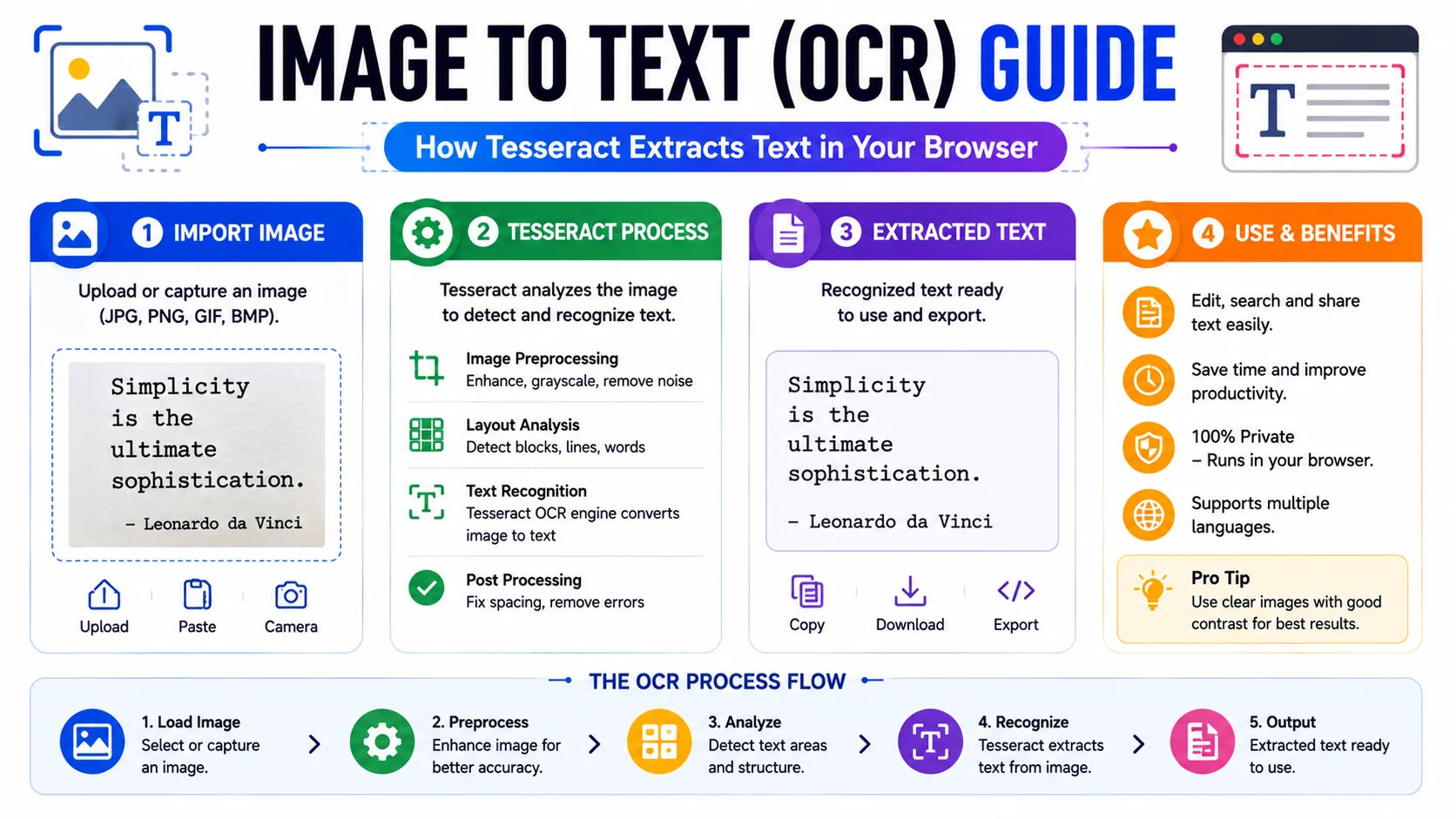
Optical character recognition converts image pixels back into editable text. This guide explains what OCR is good for, how the open-source Tesseract engine does it, why running it in your browser matters for sensitive scans, the three levers that move accuracy the most, and where OCR gives up.
What OCR Is and Where It Helps
Optical character recognition (OCR) is the technology that translates an image of text — a scanned document, a screenshot, a photo of a receipt — into machine-readable, editable, searchable text. Before OCR, the only way to get a printed paragraph into a word processor was to retype it. With OCR, the same paragraph is recovered in seconds.
The practical use cases cluster around three jobs: digitising printed reference material (books, journals, study notes) so it can be searched and quoted; extracting structured data from printed business documents (invoices, receipts, forms) into spreadsheets and accounting tools; and copying text out of images where the text is not selectable — code in a tutorial screenshot, a verse in a social post, a serial number on a label.
How Tesseract Turns Pixels Into Text
The most widely used open-source OCR engine is Tesseract, originally developed at Hewlett-Packard in the 1980s and now maintained by Google. Tesseract.js is a port of Tesseract compiled to WebAssembly so the entire engine can run inside a browser tab with no server. The recognition pipeline runs in three stages:
- Pre-processing (binarization and thresholding). The engine converts the color image into a high-contrast black-and-white grid and removes background noise. This step is what makes letter edges crisp and separable from the page.
- Feature and pattern extraction. The engine isolates individual character shapes and compares them against a trained dictionary model for the selected language — letter outlines, accent marks, punctuation, and ligatures.
- Language-model optimisation. The engine checks the candidate characters against the surrounding context — neighbouring letters, common words, and grammar — to disambiguate ambiguous shapes (a damaged
ovs ac, a1vs anl) using the language model.
The WebAssembly port runs at native-class speed and downloads the language dictionary once, then caches it in the browser for subsequent runs. The dictionary for a single language is a few megabytes — small enough that the first extraction takes a few seconds and later extractions start almost instantly.
Why Browser-Based OCR Protects Your Files
Many online OCR services route your image to a remote server for processing. That is a real risk when the image is a bank statement, a signed contract, a medical letter, or any document with personal data — once the file is on someone else's server, you depend entirely on their retention, access-control, and breach-disclosure policies.
Privacy: 100% client-side
Tesseract.js loads the language models locally into your browser cache. The image, the recognition pipeline, and the extracted text all stay inside your tab. Nothing is uploaded, nothing is logged, and nothing persists after you close the page. For sensitive scans, a browser-based OCR is the only design that respects the data.
The trade-off is throughput. A server farm can OCR thousands of pages per minute; a single browser tab is bounded by your device's cores. For the everyday case — one image, one extraction, immediate result — the browser is more than fast enough, and the privacy gain is decisive.
Improving Accuracy: Resolution, Contrast, Language
OCR accuracy is almost entirely a function of input quality. Three levers move it the most:
- Resolution. A blurry or pixelated image forces the engine to guess at character boundaries. Clear, high-resolution images of printed text are the single biggest accuracy win — aim for an effective 300 DPI or higher. If your source is a phone photo, hold steady, fill the frame, and let the camera focus.
- Contrast. Black text on a clean white background scans at 99%+. Heavy colored backgrounds, shadows, and faded ink confuse the binarization step. Crop tight to the text region and remove decorative borders before processing.
- Selected language. The wrong language dictionary is the most common silent accuracy killer. A French invoice processed with the English dictionary returns garbled accented characters and broken words. Always pick the language of the text in the image before clicking extract — there are 20+ trained models available covering major Latin, Cyrillic, CJK, and Indic scripts.
Two further issues hurt accuracy even with good defaults: skew (text photographed at an angle confuses the horizontal line analyzer — rotate the image to horizontal first) and multi-column layouts (newsletter grids can interleave columns during grouping — crop to a single column when possible).
What OCR Does Well and What It Cannot Do
Excels at
- Clean printed text in standard fonts
- Scanned documents at 300+ DPI
- Screenshots of code and UI text
- Receipts and invoices with clear layout
- Book pages and journal extracts
Struggles with
- Cursive or stylised handwriting
- Heavy decorative fonts and ligatures
- Low-resolution phone photos with motion blur
- Multi-column layouts without cropping
- Text on complex textured backgrounds
Choosing the Right Language Model
The single most under-appreciated accuracy lever in OCR is the language model you select before processing. Tesseract ships with trained data for more than a hundred languages, but the engine only performs at its best when the selected language matches the text it is reading. Run an English invoice through the Spanish model and the output will be garbled in ways that look like scanner noise but are actually a dictionary mismatch.
Two practical rules follow. First, always set the document’s language explicitly rather than relying on a default — and if the document mixes languages (a French menu with English annotations, an English contract with a Portuguese signature block), process it twice and merge, or prioritise the dominant language. Second, remember that many language packages bundle multiple scripts; choosing a script-specific model (Latin, Cyrillic, CJK, Indic) rather than a generic one often produces visibly cleaner results on accented or non-Latin text.
Preparing the Image Before You Extract
Thirty seconds of preparation saves minutes of cleaning garbled output afterward. The engine does its own pre-processing, but it works best when the input is already close to ideal:
- Rotate to horizontal. Even a few degrees of skew confuses the line-finding step; straighten first.
- Crop tight to the text. Remove decorative borders, margins, and photographic noise so the engine focuses on characters rather than background.
- Maximise contrast. Aim for near-black text on a near-white background; heavy colour casts and shadows defeat thresholding.
- Ensure sufficient resolution. An effective 300 DPI is the target for printed text; upscale or re-photograph anything crisp-but-tiny.
- Flatten multi-column layouts. Where possible, crop to one column at a time so the line grouping does not interleave.
From Raw Text to Usable Data
OCR output is rarely the end of the job; it is usually the beginning. What comes out is good, searchable text — but receipts, invoices, and forms are structured, and raw text has no columns, no labels, and no field boundaries. The practical next step depends on the goal:
- Search and quote. Raw text is already perfect — drop it into a document or a searchable archive as-is.
- Spreadsheet ingestion. For invoices and receipts, paste the extracted text and then arrange the labelled values (“total”, “date”, “vendor”) into columns, or export to CSV for further processing.
- Re-edit and republish. Run the text through a spell-check or grammar pass to catch the engine’s occasional character confusions (l versus 1, o versus 0) before it goes anywhere public.
Setting realistic expectations here — OCR gives you the words, and it is your job to impose the structure — turns a tool you fight into a tool that quietly does the heavy lifting.
Frequently Asked Questions
How accurate is browser-based OCR?
Can OCR read handwritten text?
Is my image uploaded to a server when I run browser OCR?
Which image formats work?
Which languages are supported?
How do I fix garbled OCR output?
Extract text from any image, right in your browser
The ToolWise Image to Text OCR runs Tesseract.js locally — drag-and-drop or photograph a document, pick from 20+ languages, and copy or download the extracted text. No upload, no signup, no daily cap.
Open Image to Text OCR →